Docs / Tutorials /
SolidWorks
Follow this tutorial to create a RenderPen presentation from a SolidWorks assembly.
Step 1: Open Save As dialog
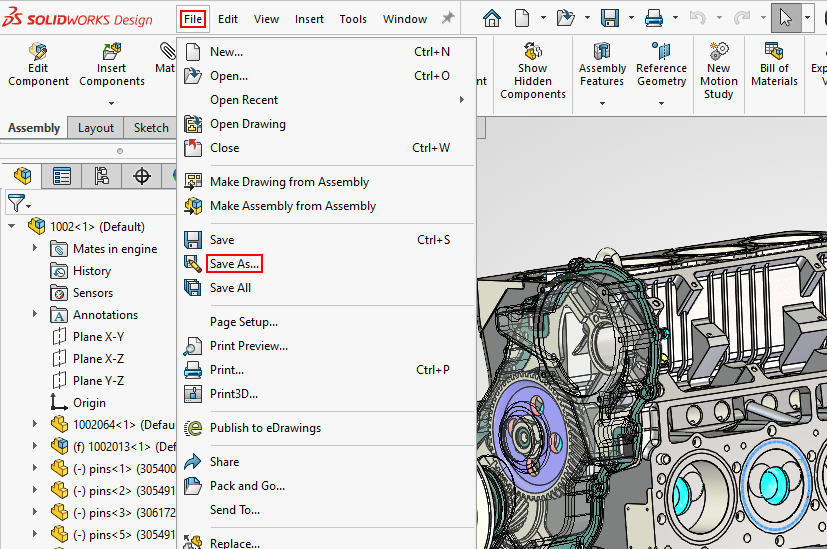
With your .ism file open in SolidWorks, click File › Save As...
Step 2: Select Extended Reality Binary (*.glb)
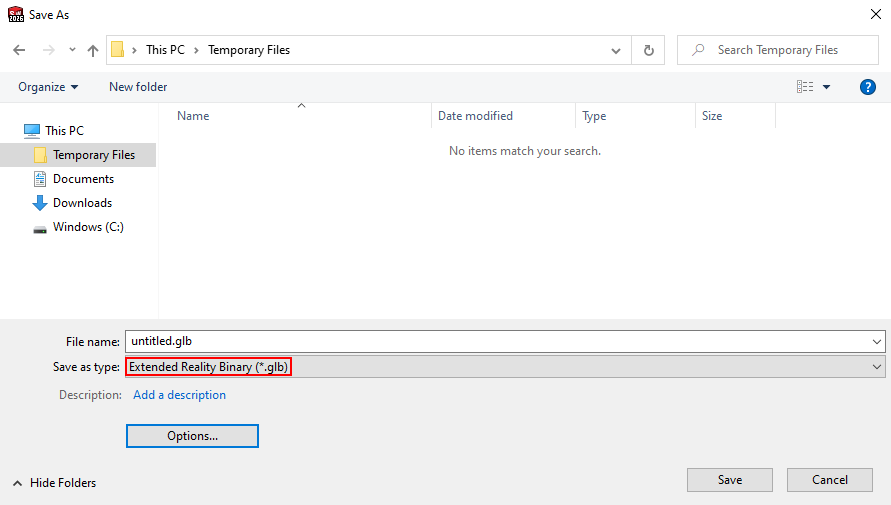
In the Save As dialog, select the Extended Reality Binary (*.glb) option in the Save as type dropdown.
Step 3: Open System Options - GLTF/GLB dialog
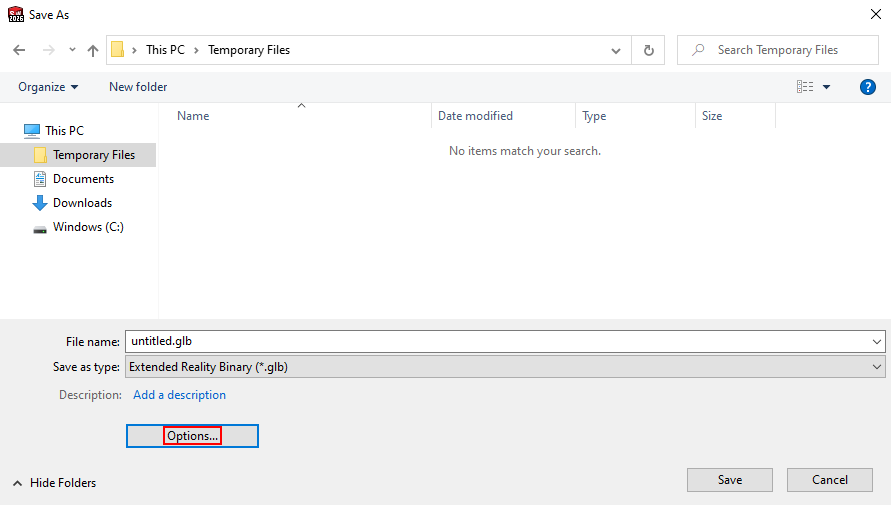
Click the Options... button.
Step 4: Adjust GLB settings
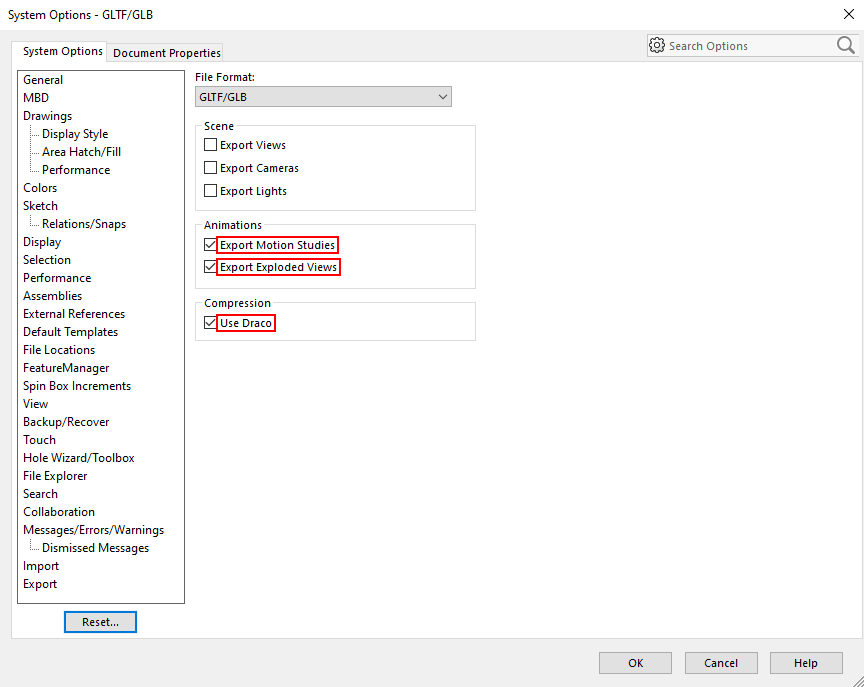
Check the Export Motion Studies, Export Exploded Views, and Use Draco checkboxes. Click OK.
Step 5: Adjust file path & export
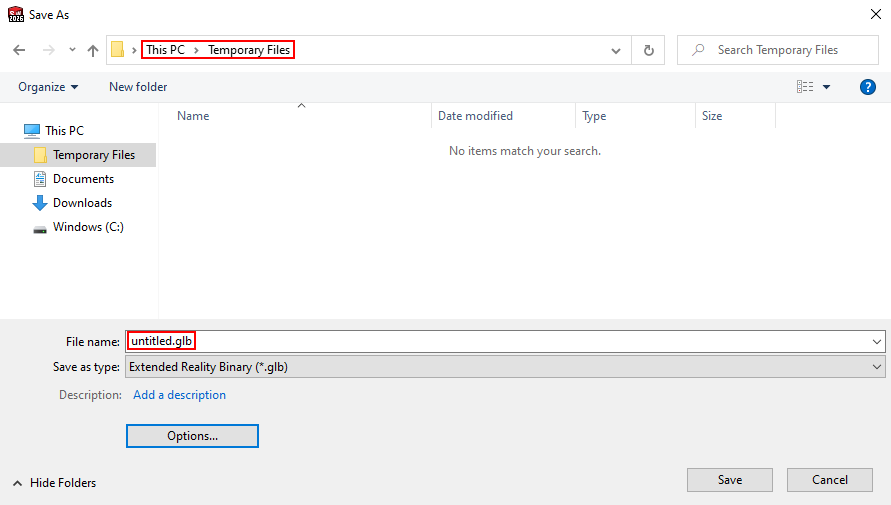
In the Save As dialog, adjust the directory path and enter a file name. Click the Save button.
Step 6: Create RenderPen project
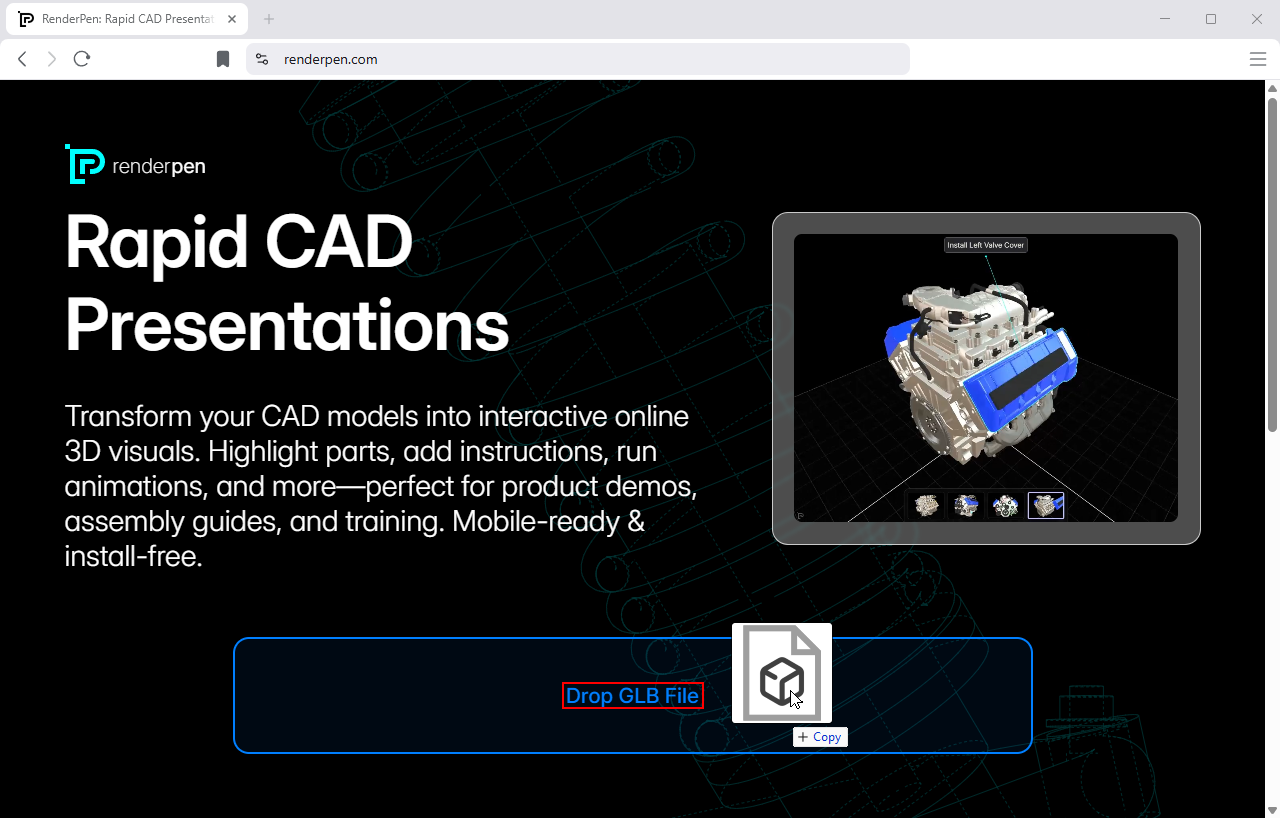
Go to renderpen.com and drop the .glb file from step 5 into the drop zone.
Step 7: Annotate & save
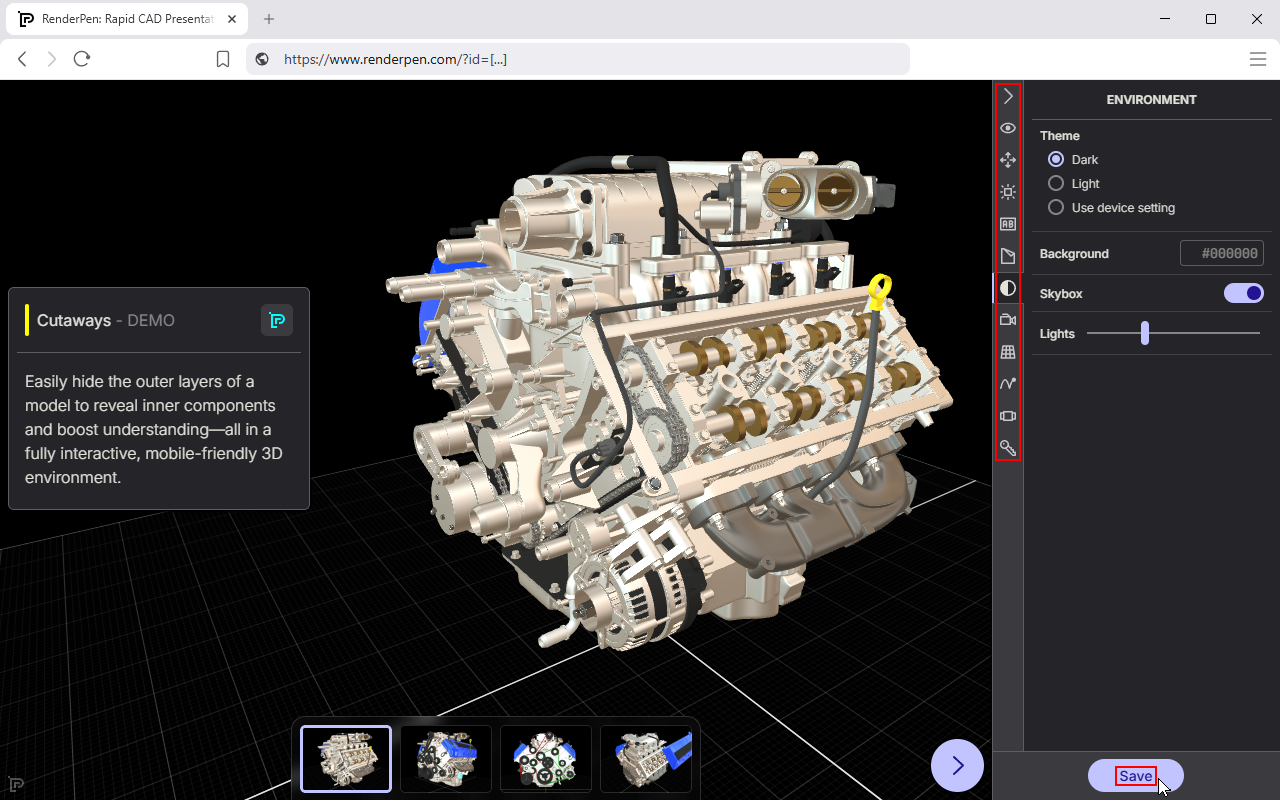
Use the annotation tools to prepare your presentation (optional). Click the Save button and enter your email address when prompted.
Step 8: Share
RenderPen will email you private project links (check your spam folder if needed). Share the View link with your audience.